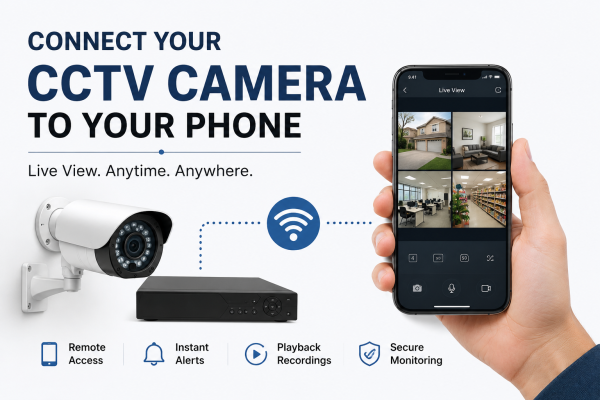
Complete Step-by-Step Guide
CCTV cameras have become an important part of home and business security. Whether you own a shop, office, apartment, warehouse, or house, being able to view your CCTV cameras directly on your mobile phone gives you complete control and peace of mind.
Today, most modern CCTV systems support mobile viewing, allowing users to monitor live footage, playback recordings, receive motion alerts, and check property security from anywhere. However, many people struggle with setup issues, internet connectivity problems, or mobile app configuration.
If you are searching for how to connect your CCTV camera to your phone, this complete guide will help you understand every step in a simple and practical way.
Why Connect CCTV Cameras to Your Mobile Phone?
Connecting your CCTV camera system to your smartphone provides several benefits for both residential and commercial users.
Benefits of Mobile CCTV Monitoring
-
Watch live CCTV footage anytime
-
Monitor your home or office remotely
-
Receive instant motion detection alerts
-
Check recordings from anywhere
-
Improve property security
-
Monitor employees, visitors, or deliveries
-
Access multiple cameras on one phone
-
Increase overall convenience and control
Whether you are travelling, working, or at home, mobile CCTV access helps you stay connected to your property 24/7.
Types of CCTV Cameras That Support Mobile Viewing
Before connecting your CCTV system to your phone, it is important to know which type of camera you are using.
1. WiFi CCTV Cameras
Wireless CCTV cameras connect directly to WiFi and are usually easier to configure through a mobile app.
2. DVR-Based CCTV Systems
Traditional HD CCTV cameras connect to a DVR system using cables. Mobile viewing is possible through an internet-enabled DVR setup.
3. NVR/IP Camera Systems
IP cameras connect through network cables or WiFi and use an NVR for recording. These systems usually provide better remote access features.
Things You Need Before Connecting CCTV to Your Phone
Before starting setup, make sure you have:
-
Working CCTV cameras
-
DVR or NVR is connected properly
-
Stable internet connection
-
WiFi router
-
Smartphone (Android or iPhone)
-
CCTV mobile app
-
Power supply for cameras and DVR
-
QR code or serial number of DVR/NVR
Having proper internet connectivity is extremely important for remote viewing.
Step-by-Step Guide to Connect a CCTV Camera to a Mobile Phone
Step 1: Install the CCTV Mobile App
Most CCTV brands provide their own mobile applications for remote viewing.
Some common CCTV apps include:
-
Hik-Connect
-
DMSS
-
XMEye
-
gDMSS
-
iVMS-4500
-
Guarding Vision
-
EZVIZ
Download the correct app from:
-
Google Play Store
-
Apple App Store
Always use the official mobile app recommended by your CCTV manufacturer.
Step 2: Connect DVR/NVR to the Internet
Use a LAN cable to connect your DVR or NVR to the WiFi router.
Steps:
-
Plug the LAN cable into the DVR/NVR
-
Connect the other side to the router
-
Check network status in DVR settings
-
Ensure the internet connection is active
Without internet connectivity, mobile viewing will not work.
Step 3: Enable Cloud or P2P Service
Most modern DVRs use P2P cloud technology for remote viewing.
To enable it:
-
Open DVR/NVR settings
-
Go to Network Settings
-
Find the P2P or Cloud option
-
Enable the feature
-
Status should show “Online”
If the status shows offline, check your internet connection.
Step 4: Scan QR Code on Mobile App
Open the mobile app and:
-
Create an account
-
Click “Add Device”
-
Scan QR code from DVR/NVR
-
Enter device password
-
Save device settings
The QR code is usually available:
-
On DVR sticker
-
Inside network settings
-
In device information section
Step 5: Start Live Viewing
Once the device is added successfully:
-
Open the app
-
Select camera channel
-
Start live viewing
You can now monitor your CCTV cameras directly from your smartphone.
How to Connect WiFi CCTV Camera to Phone
Wireless CCTV cameras are easier to configure because they do not require a DVR in many cases.
Setup Process for WiFi Cameras
-
Install camera app
-
Turn on camera power
-
Connect phone to WiFi
-
Open mobile app
-
Scan QR code
-
Select WiFi network
-
Enter WiFi password
-
Complete setup
After setup, the camera becomes accessible through the app.
Common Problems While Connecting CCTV to Mobile
Many users face setup issues during configuration.
1. Device Offline Problem
Possible reasons:
-
No internet connection
-
Wrong network settings
-
Weak WiFi signal
-
Router issue
2. QR Code Not Scanning
Solutions:
-
Clean QR sticker
-
Increase brightness
-
Enter serial number manually
3. Mobile App Not Working
Try:
-
Updating the app
-
Reinstalling application
-
Restarting DVR and router
4. Remote Viewing Not Working
Possible causes:
-
P2P disabled
-
Poor internet speed
-
Incorrect login credentials
Tips for Better Mobile CCTV Performance
To improve CCTV mobile viewing experience:
-
Use high-speed internet
-
Keep DVR firmware updated
-
Use original power supply
-
Avoid weak WiFi signals
-
Change passwords regularly
-
Enable motion alerts
-
Clean cameras periodically
Good maintenance improves both security and app performance.
Advantages of CCTV Mobile Monitoring for Businesses
Business owners benefit greatly from remote CCTV access.
Benefits for Shops & Offices
-
Monitor employees remotely
-
Check customer activity
-
Improve office security
-
Monitor warehouses and stock
-
Reduce theft risks
-
Access recordings anytime
Many businesses in Delhi, Noida, Ghaziabad, and nearby areas now prefer mobile-enabled CCTV systems for better control and monitoring.
CCTV Mobile Setup Services in Delhi NCR
If you are unable to connect your CCTV camera to your phone, professional CCTV technicians can help with:
-
Mobile app setup
-
DVR configuration
-
Internet connectivity
-
WiFi camera installation
-
Remote viewing setup
-
Network troubleshooting
-
CCTV maintenance
Professional setup ensures secure and smooth remote monitoring without technical problems.
How to Keep Your CCTV System Secure
Remote viewing is useful, but security is equally important.
Important Security Tips
-
Use strong passwords
-
Avoid public WiFi access
-
Update firmware regularly
-
Enable two-step verification if available
-
Change default DVR passwords
-
Limit unauthorized access
These steps protect your CCTV system from hacking or misuse.
Conclusion
Connecting your CCTV camera to your phone is one of the best ways to improve security and monitor your property remotely. Whether you use WiFi cameras, DVR systems, or IP cameras, mobile viewing provides convenience, control, and peace of mind.
With the right setup, you can watch live footage, access recordings, receive alerts, and manage your security system from anywhere.
If you are facing problems while connecting your CCTV camera to your mobile phone, professional CCTV technicians in Delhi, Noida, Ghaziabad, Indirapuram, and nearby areas can help you with proper setup and troubleshooting.
A properly configured CCTV system ensures better security, reliable monitoring, and uninterrupted remote access for your home or business.